
COLOR LAB / 02
Remove Color From Image
Click the color you want gone, refine the range, and turn matching pixels transparent—without touching the rest of the image.
Built for real work
- Live canvas preview
- Local image processing
- Full-size export
Interactive workspace
Upload, adjust, export
Why it works
Delete a selected color and keep the rest untouched
Use this color remover when a background or graphic element is defined by a consistent color. Select a pixel from the preview and the matching color range becomes transparent in real time.
Tolerance is the key control: a small value removes only nearly identical pixels, while a larger value catches compression artifacts and edge shades. Export as PNG or WebP to preserve transparency.
Transparent output
Matching pixels are removed to alpha instead of painted white.
Edge control
Tune the selected range to handle anti-aliasing and JPG artifacts.
Instant preview
A checkerboard shows exactly which pixels will be transparent.
Generated case study
See the change, pixel for pixel
Original example imagery was generated for CreateGlow, then processed for this tool demonstration.
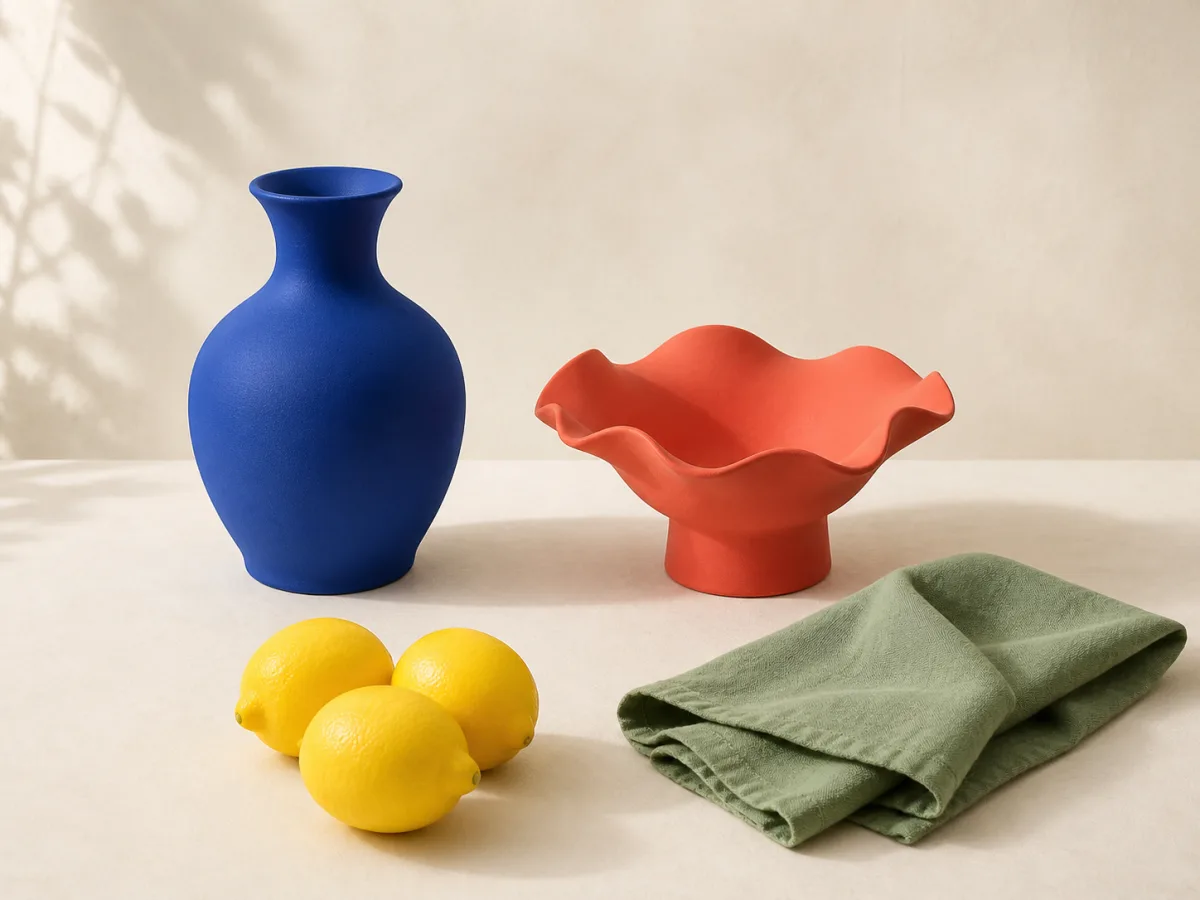 BeforeAfter
Four clear steps
How to use Remove Color From Image
- 01
Open your image
Choose a file with the color or backdrop you want to remove.
- 02
Sample a color
Click the preview at a representative point.
- 03
Refine the selection
Increase tolerance until edge pixels disappear cleanly.
- 04
Export transparency
Download PNG or WebP to keep the transparent pixels.
Good to know
Frequently asked questions
Keep creating
Related image tools
Image Color Changer
Select a color directly from your image, replace it with a new shade, and keep the original texture, light, and detail intact.
Open toolInvert Image Colors
Turn any image into a color negative or blend the inversion for surreal palettes, accessibility checks, and experimental artwork.
Open toolImage Converter
A focused image converter for PNG, JPG, and WebP: compare quality locally and keep the exact pixel dimensions of your source.
Open toolBatch Image Resizer
Resize a group of photos to consistent dimensions while preserving aspect ratio and keeping every source file on your device.
Open tool