
FORMAT DESK / 02
Batch Image Resizer
Resize a group of photos to consistent dimensions while preserving aspect ratio and keeping every source file on your device.
Built for real work
- Live canvas preview
- Local image processing
- Full-size export
Interactive workspace
Upload, adjust, export
Your resized set appears here
Add several source images, choose a maximum size, and process the batch locally.
Why it works
Make a whole image set consistent
Batch resizing is useful for product catalogs, blog images, portfolio grids, marketplace listings, and social campaigns. Add several images, enter the target width and height, and process the set with one configuration.
Contain mode fits every image inside the target box without cropping. The result keeps each original aspect ratio and exports as JPG, PNG, or WebP.
Multiple files
Process up to 20 source images in a single local batch.
Aspect-ratio safe
Fit images inside a target box without stretching faces or products.
Consistent output
Apply the same size, format, and quality to the entire set.
Generated case study
See the change, pixel for pixel
Original example imagery was generated for CreateGlow, then processed for this tool demonstration.
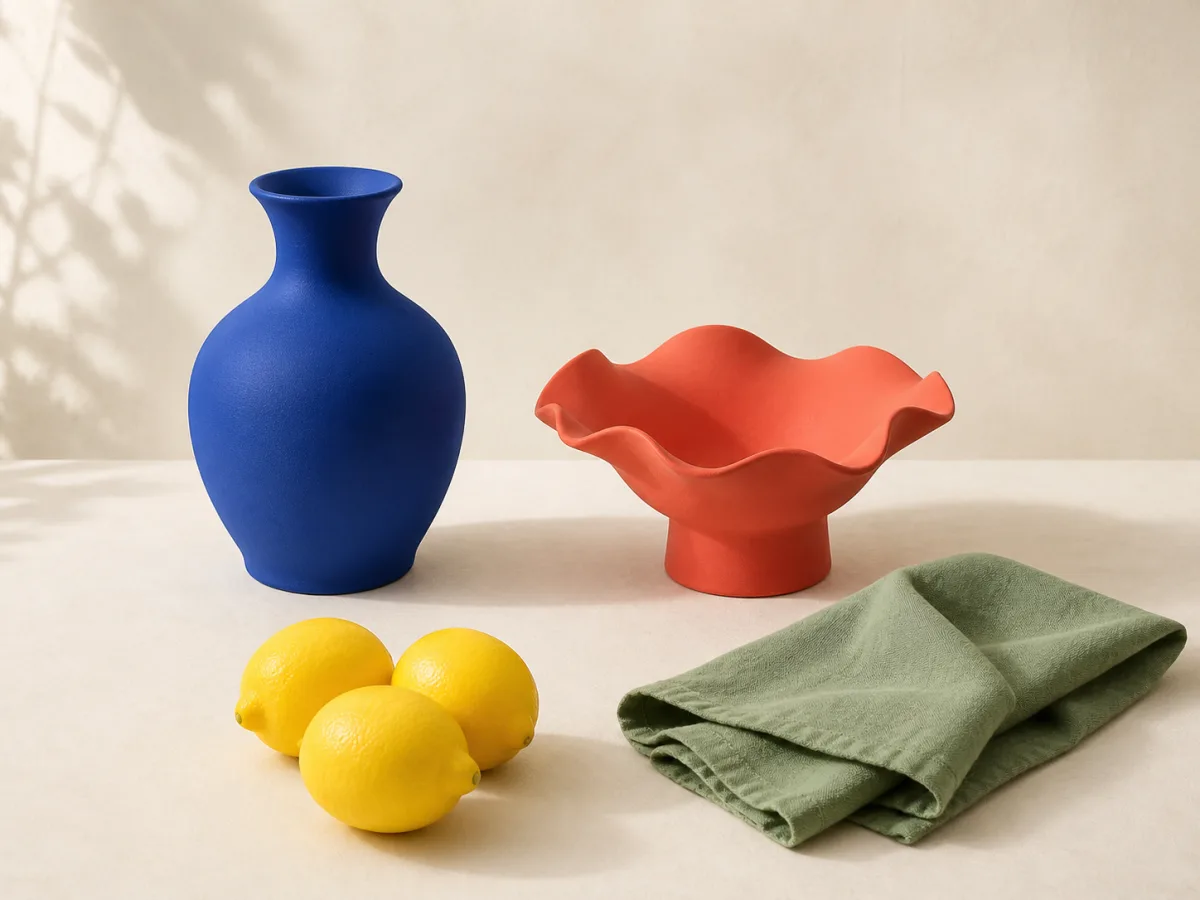 BeforeAfter
Four clear steps
How to use Batch Image Resizer
- 01
Add several images
Select up to 20 PNG, JPG, or WebP files.
- 02
Set the size
Enter the maximum width and height for the output set.
- 03
Choose format and quality
Use WebP for web delivery, JPG for photos, or PNG for transparency.
- 04
Process and download
Review each result and download the resized files.
Good to know
Frequently asked questions
Keep creating
Related image tools
Image Color Changer
Select a color directly from your image, replace it with a new shade, and keep the original texture, light, and detail intact.
Open toolRemove Color
Click the color you want gone, refine the range, and turn matching pixels transparent—without touching the rest of the image.
Open toolInvert Image Colors
Turn any image into a color negative or blend the inversion for surreal palettes, accessibility checks, and experimental artwork.
Open toolImage Converter
A focused image converter for PNG, JPG, and WebP: compare quality locally and keep the exact pixel dimensions of your source.
Open tool